
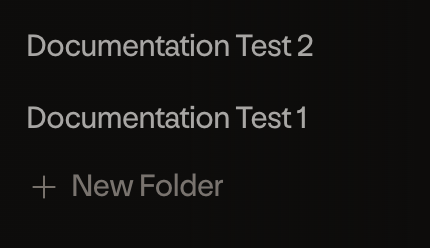
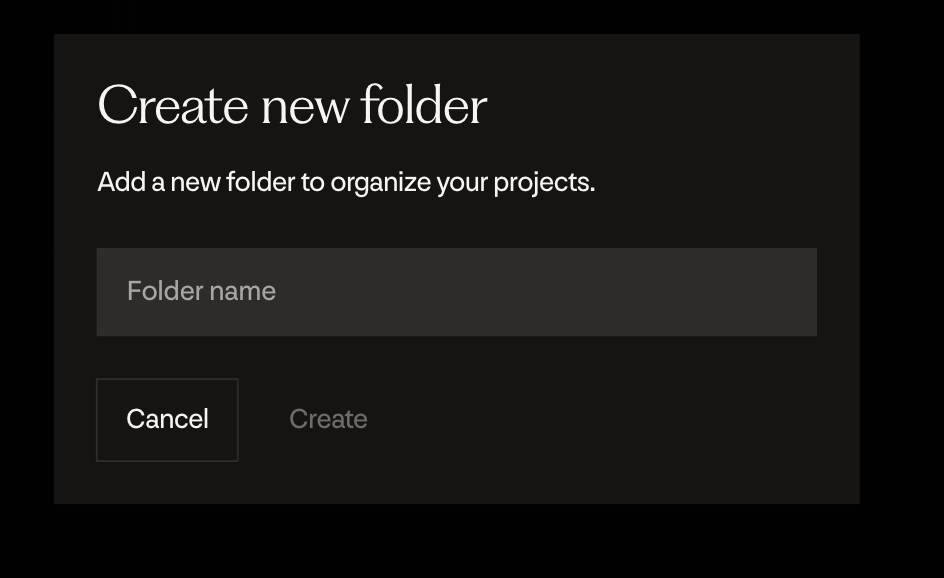
Folders

Project cards
A Rehearsal can be in one of three states:

 Draft - The Rehearsal plan has not been completed yet, and the simulations have not begun running. Human intervention is still required at this step. The indicator will be ‘Draft’.
Running - The Rehearsal is in flight, you can click into it to view the progress of the simulation. The indicator will be ‘Running’.
Completed - The Rehearsal has completed, and you can now view the published report. Until you open the report, it will have an ‘Unread’ indicator on it.
Draft - The Rehearsal plan has not been completed yet, and the simulations have not begun running. Human intervention is still required at this step. The indicator will be ‘Draft’.
Running - The Rehearsal is in flight, you can click into it to view the progress of the simulation. The indicator will be ‘Running’.
Completed - The Rehearsal has completed, and you can now view the published report. Until you open the report, it will have an ‘Unread’ indicator on it.
Saved Cohorts
The saved cohorts tab is where your cohorts will appear. You can favorite them by clicking the corresponding star next to the cohort. If the star is already filled in then it’s favorited, so clicking it again will unfavorite that cohort. Favorited
  Unfavorited