Describe your goal
To start a new Rehearsal, press New Rehearsal. Type what you want to learn in plain English, or use the prompt builder beneath the composer. It guides you through a research goal, what you want to study, and the outcome you need to understand. Each choice builds an editable sentence in the composer, and you can remove a choice to step back. After the last choice, add useful context with a screenshot, photos and videos, files, a previous Rehearsal, or a saved audience. You can also skip the builder and write your own question at any time. If the agent needs more detail, it will ask follow-up questions one card at a time. You can answer the cards directly or type your answer in the chat.Refine the plan
As you chat, the plan fills in next to the conversation. This includes the title, the interview questions, and the outline of the report you’ll get back. There are two ways to change the plan. Ask for changes in the chat, or edit the plan directly. You can reorder questions by dragging them. The chat and the plan will always stay in sync.Review the cohort
The agent will propose a target cohort in the chat, this is the group of replicas that will be interviewed. Press Create if it looks right, or Dismiss if not. If you want something different, just describe it in the chat. Once created, you’ll see the cohort fill in as replicas qualify. Click any replica to view their profile. For full control over cohorts, see Building & Targeting a Cohort.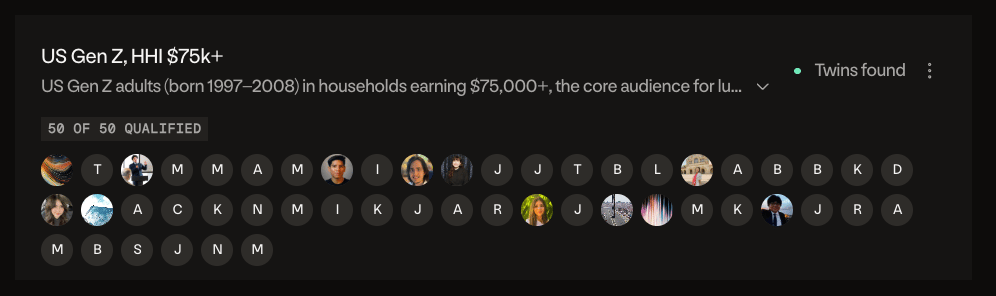
Attach content
If you want the cohort to react to specific stimuli, attach it from the composer. Images, videos, and documents all work. You can upload new files or pick from your Content Library.Run Rehearsal
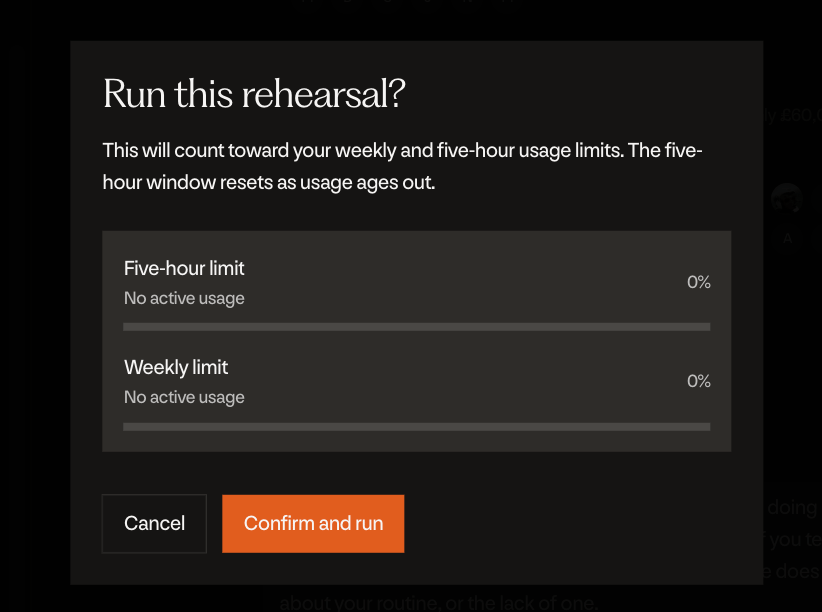
When the plan looks good, press Run Rehearsal. The plan needs a title, enough questions, report sections, and at least one cohort. If anything is missing you’ll get a checklist showing what’s left. One thing to know before you confirm, once the Rehearsal has been kicked off, the plan cannot be changed. Not ready yet? Press Save and exit. The Rehearsal will wait on your dashboard as a draft. Once you do run it, see Running & Monitoring a Rehearsal for what happens next.